Hedgemony™ User Guide

Hedgemony runs a lawn care business from your pocket: your schedule, your clients, and what you're owed. Your book works with no signal, so a dead spot at the back of a neighborhood never stops your day; crew updates and card payments sync when you're back in range. This guide walks the app the way you'd walk a work day.

Your clients never install anything. Texts come from your own phone number, and invoices arrive as normal PDFs. If you switch on card payments, they tap a link and pay on Stripe's secure page. To them, it's just you, but organized.

1. Get your clients in

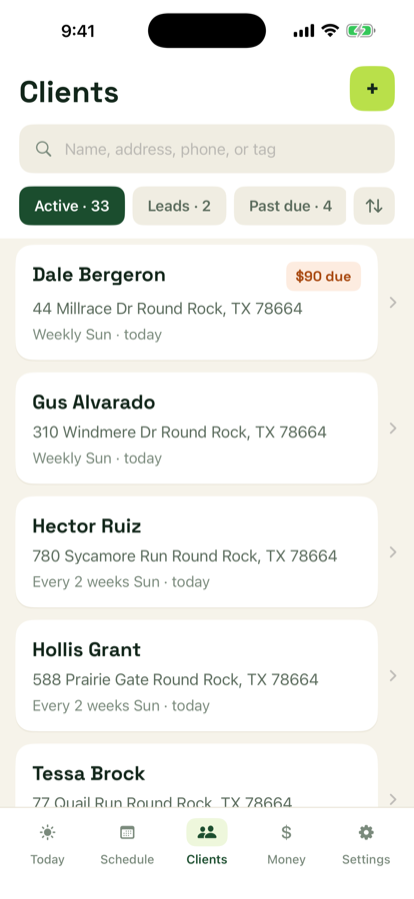
Open the Clients tab and tap the green +. You can add one client by hand, with their address and schedule on a single screen, or import your whole list at once.

Give a client a schedule (weekly, every 2 weeks, or monthly) and the next ten weeks fill in by themselves. Change the schedule later and the app shows you exactly which visits will move before you confirm.

Clients tab
Search, filters, and every client's cadence at a glance.

2. Run your day

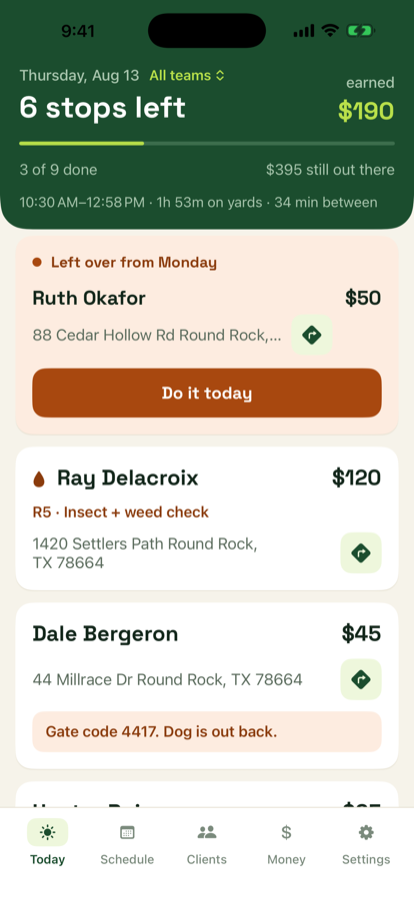
The Today tab is the screen the app opens to. The green header answers the only question that matters: how's the day going. Stops left, money earned, money still out there.

Gate codes and dog warnings sit right on the card, because that's when you need them.

Today tab
Two done, two to go, and Thursday's leftover on top in orange.

3. Complete a job

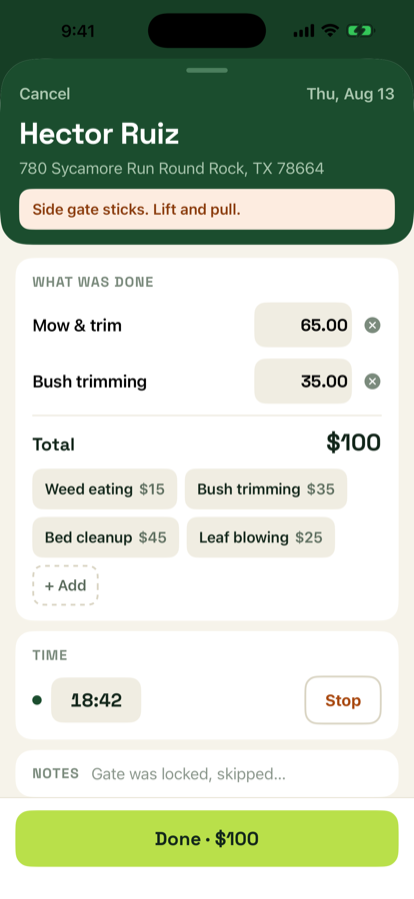
Tap a card to open the job. Everything is prefilled from the client's plan, so the common case is two taps: open, then Done.

The big button at the bottom shows the total it's about to charge. That tap is what puts the money on the client's balance.

Made a mistake? Open the completed job and use Undo completion. The charge comes off the books and the stop goes back on today's list.

Complete job screen
Prefilled price, upcharge chips, timer, and the total on the button.

4. The week

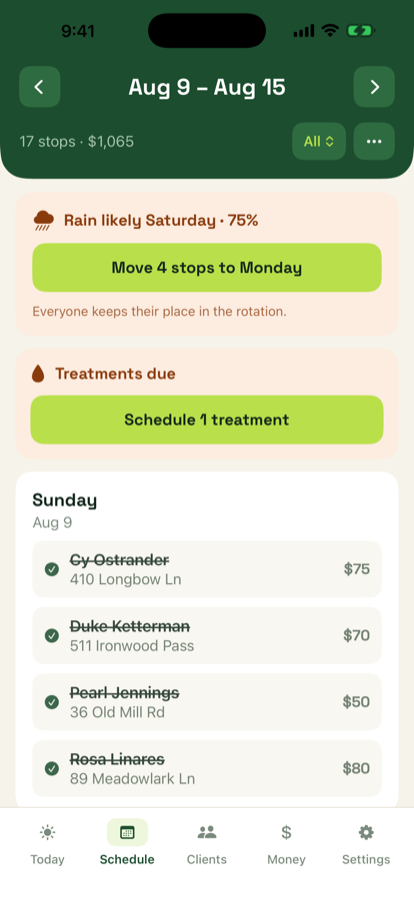
The Schedule tab shows the week as day cards with each day's stop count and dollar total. Arrows move between weeks.

Weather

Each day card carries its forecast, so the week you're looking at is the week the sky is planning. When rain is likely on a day that still has stops on it, a card appears at the top of the week: "Rain likely Thursday, move its 8 stops to Friday?" One tap does the whole move, and it only ever offers a day the forecast says is dry enough to be worth it. It's a suggestion. You decide.

Forecasts come from Apple Weather and need a signal to refresh, so grab the week before you drive out of range. Everything else on this screen works offline as always.

The weekly checklist

Truck maintenance, blade sharpening, shop chores: the Schedule menu has a Weekly checklist for the work that keeps the operation running. Type an item and pick Every week and it comes back fresh each Sunday, unchecked and waiting. Pick Just this week and it stays on the list, week after week, until you check it off or swipe it away. Swiping away a repeating item asks whether you mean this week only or from now on.

Schedule tab
Sixteen stops and $955 on the board, each day under its own sky.

5. Text your clients

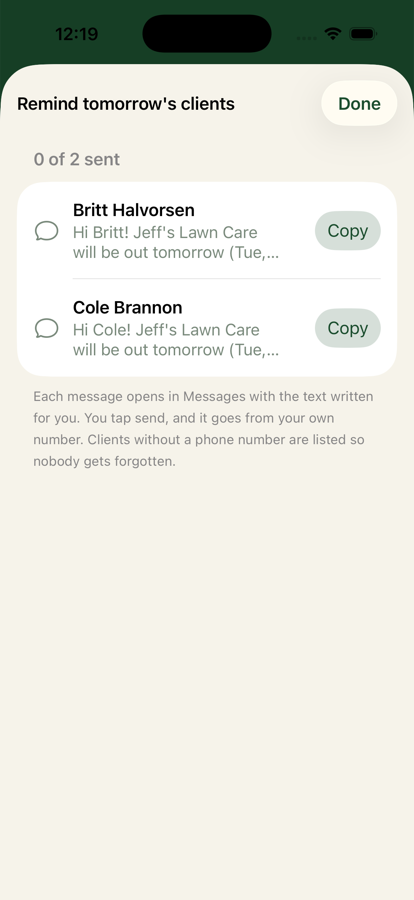
The evening before a work day, open the Schedule menu and tap Text tomorrow's clients. Hedgemony queues tomorrow's stops with a message already written for each one, using your template. Tap Send on each and it opens in Messages addressed to that one client. You send it, from your number, so it reads like you and not a robot.

The wording lives in Settings → Message templates. Tokens like {{name}} and {{day}} fill in automatically per client. The same system writes balance reminder texts from the Money tab.

Nothing ever sends by itself. No timers, no automation, no surprise messages to your clients.

Reminder run
Tomorrow's queue, one tap per client. (On your phone the buttons read Send; this simulator can't text.)

6. Get paid

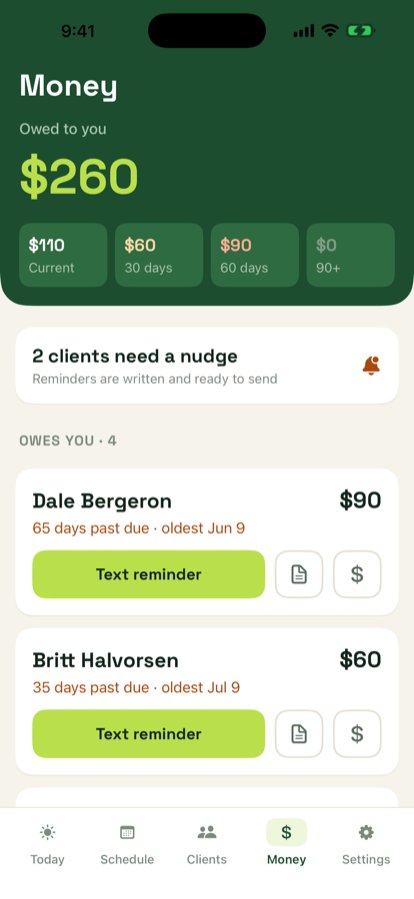
The Money tab keeps the score: the total owed to you, split by how old it is. Current, 30, 60, 90 plus. Each client who owes shows how long they've owed and gives you three moves:

Invoices are frozen once issued. If you fix a price afterwards, the client's balance updates but the document they received never changes out from under them.

If every visit is already on an invoice, the invoice screen says so and lists what is still unpaid, so you can see what you are waiting on without hunting through old invoices.

Money tab
Who owes and for how long, then what you've spent and who needs a nudge.

Send it as a text

Most of this work is settled by text, so an invoice can go that way too. Tap As a text and Hedgemony writes the message: the work by date, the total, and every way you take money. It opens in Messages with your client's number already filled in, and you tap send. It arrives from your own number like everything else.

The wording is yours. Settings → Message templates holds the invoice text alongside your reminders, so you can say it the way you say it. Anything you do not use, like a card link you have not set up, drops out of the message instead of leaving a gap.

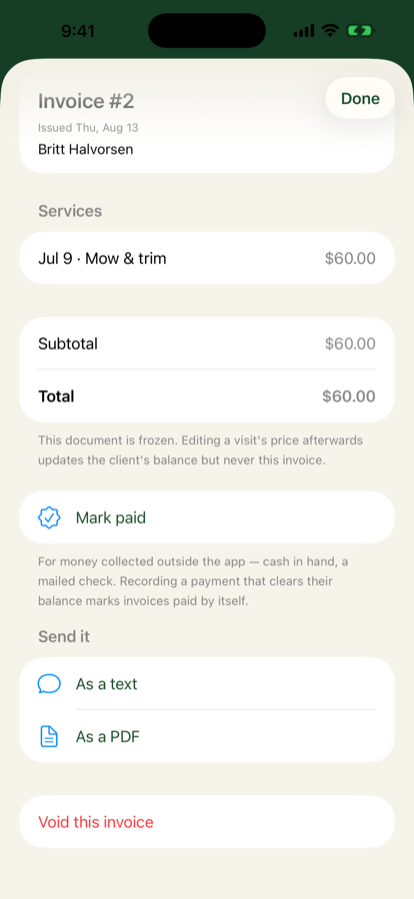
An issued invoice
An issued invoice: send it as a text or a PDF, mark it paid, or void it.

What your client receives

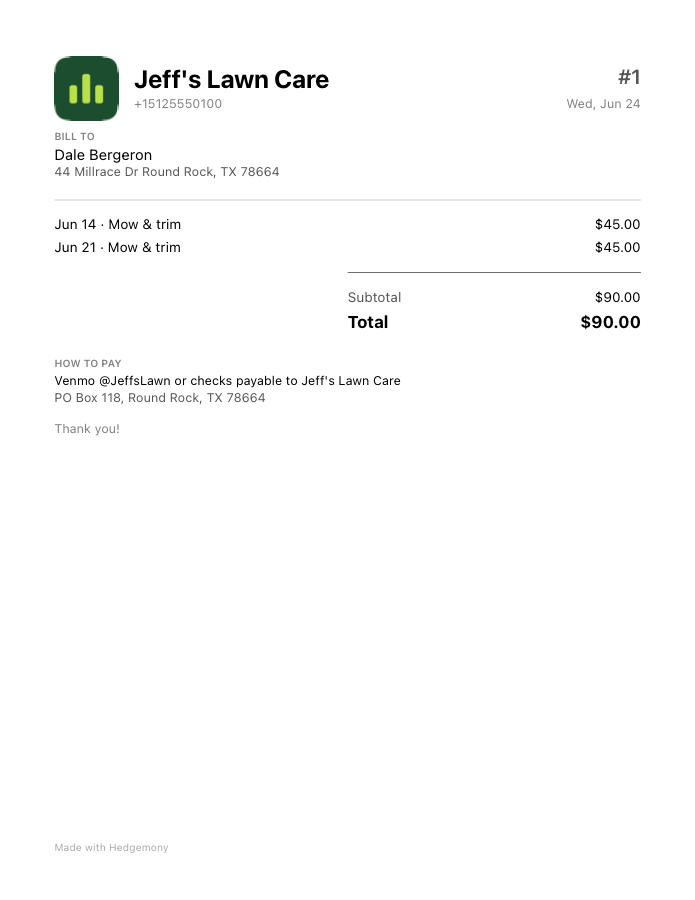
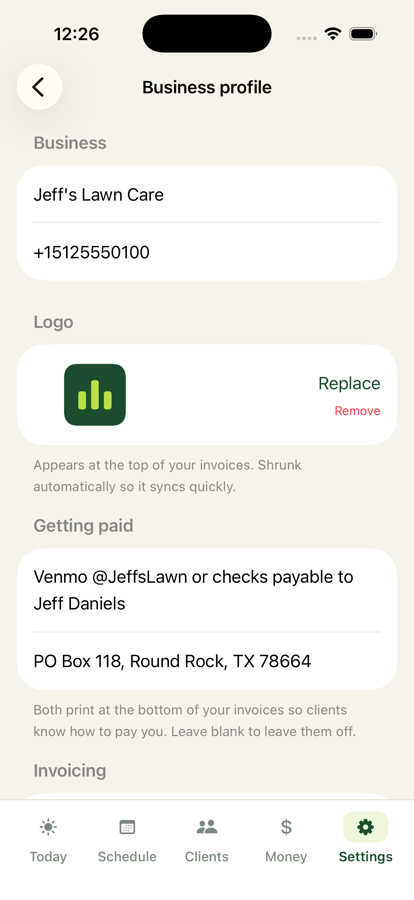
Set your logo, Venmo line, and mailing address once in Settings → Business profile, and every invoice tells the client exactly how to pay you. Tap As a PDF when you want the printed page instead of the message.

Invoice PDF
The PDF your client gets: your logo, the work by date, and how to pay.

Getting paid by card

Card payments are optional and off until you turn them on. In Settings → Getting paid, tap Set up card payments and connect a free Stripe account. Stripe walks you through the usual business and bank questions on its own pages. It takes about ten minutes and you only do it once. If you step away before Stripe is finished, the app says so wherever a card action would have gone (an invoice's pay link, a client's autopay card) and offers Finish payment setup right there.

After that, every invoice carries a pay link by itself. There is no button to press:

The payment lands back in Hedgemony by itself the next time you open the app. The balance drops, the invoice gets a PAID badge, and Stripe emails your client a receipt. Cash and checks settle invoices too: the invoice screen leads with Record the payment, and a payment that clears their balance marks their invoices paid by itself. A separate Stamp paid button covers the odd case and changes the document only. Either way the live pay link is withdrawn so nobody can pay twice. The link is also printed on the invoice PDF for anyone who'd rather click there, and it doesn't expire, so a text found two weeks later still works.

The money goes from your client to your Stripe account and out to your bank. Stripe keeps about 2.9% + 30¢ of each card payment and Hedgemony keeps 0.5% — about 3.4% + 30¢ all-in. That's the whole price: no monthly cost, and cash or check payments you record yourself are always free. Hedgemony never holds your money.

Autopay

For clients who'd rather not think about it, open their profile and use Text card setup link under Autopay. They save a card once on Stripe's page, and then you choose how they're billed:

These charges do happen on their own, which is the point of autopay, and Stripe sends the receipt. If a card is declined, nothing breaks: the balance simply stays owed and shows up in your reminders like any other past due client.

Fixing a mistake

You will fat-finger a payment eventually. Two ways out, and neither of them asks you to type a minus sign.

A hand-entered payment can also be deleted outright from the client's money list. Charges from completed jobs and card payments from Stripe stay put: those belong to a visit and to Stripe, and deleting one would only bring it back on the next sync.

Overdue reminders

When someone drifts past due, the Money tab says so: "3 clients need a nudge." Tap it and you get them one after another with the message already written, getting a little firmer at 7 days, 14 days, and 30 days. Tap through, send from your number, done.

Hedgemony tracks which reminder each client has had, so nobody gets the same one twice, and paying up clears the slate. If they fall behind again months later, the ladder starts over at friendly.
7. Know your numbers

Money coming in is half the picture. The Money tab holds the other half.

Expenses

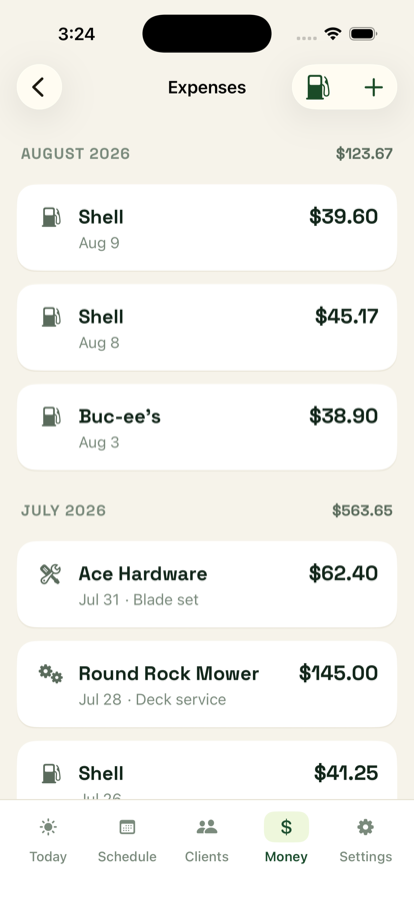
Tap Expenses under Spending. The fuel pump button in the corner is the one you'll use most: it opens with the category already set and the keypad already up, so a gas stop takes about ten seconds. Add the odometer and a photo of the receipt if you want them; skip them if you don't. Tap a saved receipt any time to read it full screen. Expenses your crew logs arrive here on their own, photo attached and marked with who logged them. The + button covers everything else, from blades to insurance.

Expenses group by month with a running total, and they show up in your reports and your CSV export, which is the point. Come tax time you're reading a list instead of digging through a glovebox.

Expenses list
Every month totalled, every stop accounted for.

The weekly and monthly report

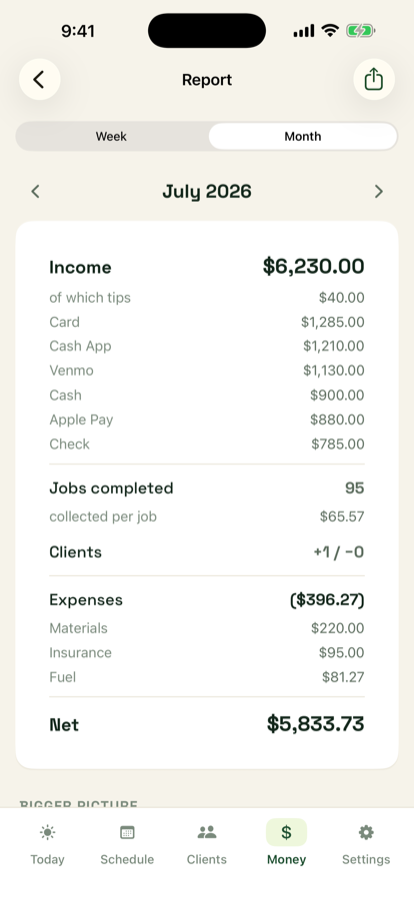
Tap the Report card for the numbers a business actually runs on:

Switch between Week and Month, and use the arrows to walk back through past periods. The share button in the corner turns whatever you're looking at into a one page PDF: text it to yourself, email it to your accountant, or file it. It also lists what your clients still owe you as of today, because a great month with a growing pile of unpaid invoices isn't a great month.

Monthly report
A month on one screen, and the same thing shares as a PDF.

Your time

The Your time card ranks your clients by what an hour at their yard actually pays you, worst first. It builds from the job timer, so the more you use the timer the truer it gets. This is the screen that tells you which yard to reprice, and it's the number your quote calculator is aiming at.

8. Win new work

From the Clients tab, tap the green + and choose Quotes. A new quote is meant to be built at the curb, before you drive away.

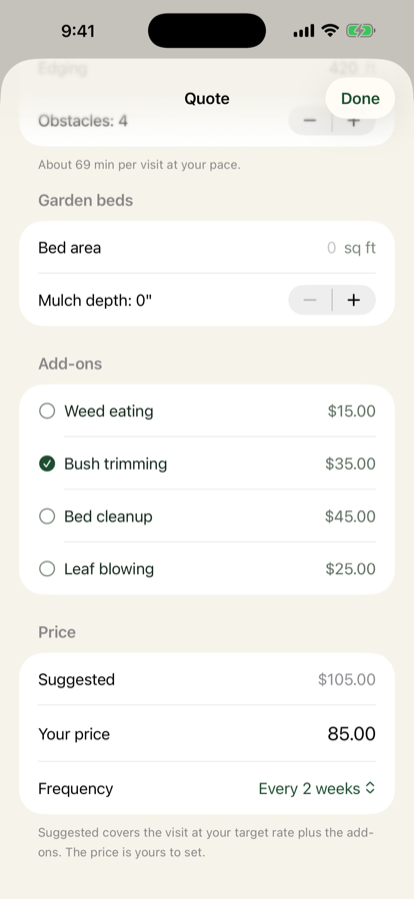
Quote builder
Measurements in, and the minutes tally under them updates as you go.

Hedgemony turns all that into minutes of work, prices those minutes at your rate, and shows a suggested price. Your price is a separate line right under it, because the suggestion is a starting point and you know the customer. Pick weekly, biweekly, or monthly, and you have a quote.

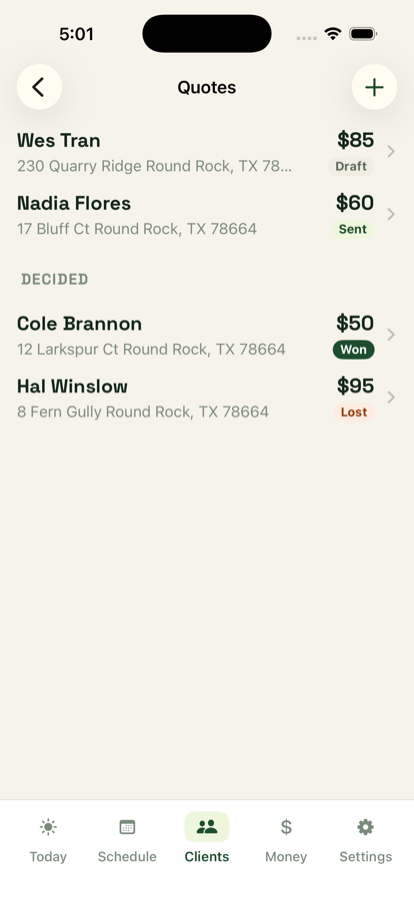
Text the quote sends it in plain language from your number. When they say yes, tap They said yes, pick the first visit date, and the client, the property, and the whole recurring schedule are created at the price you quoted. Nothing to retype. If they pass, mark it lost and it stays in your records where the pipeline can learn from it. Swipe any quote to delete it for good.

Quotes list
Out, waiting, won, and lost, in one list.

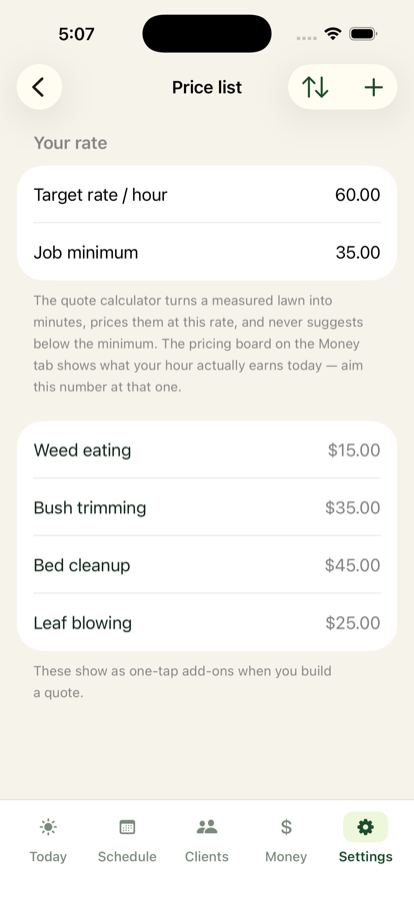
Your rate and your price list

Both live in Settings → Price list.

Price list settings
Set your hour once. Every quote is built from it.

9. Leads and flyers

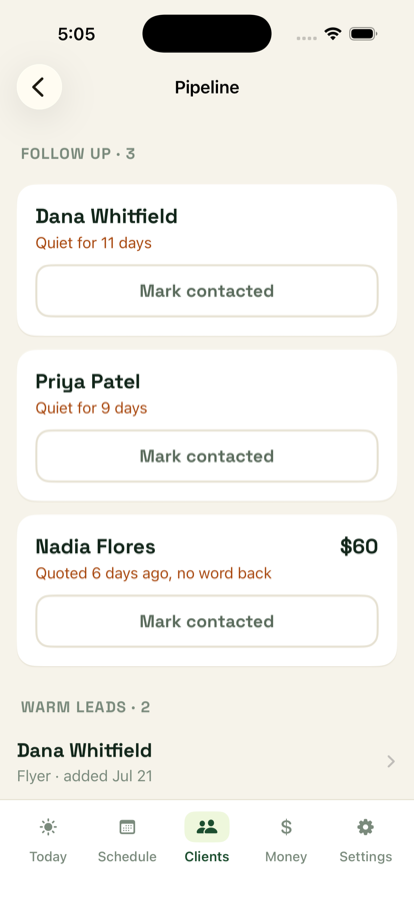
The Pipeline, also under the Clients tab + menu, is where the work you haven't won yet lives.

Pipeline
Who has gone quiet, and for how long. (On your phone each card also offers Text a nudge; this simulator can't text.)

The flyer map

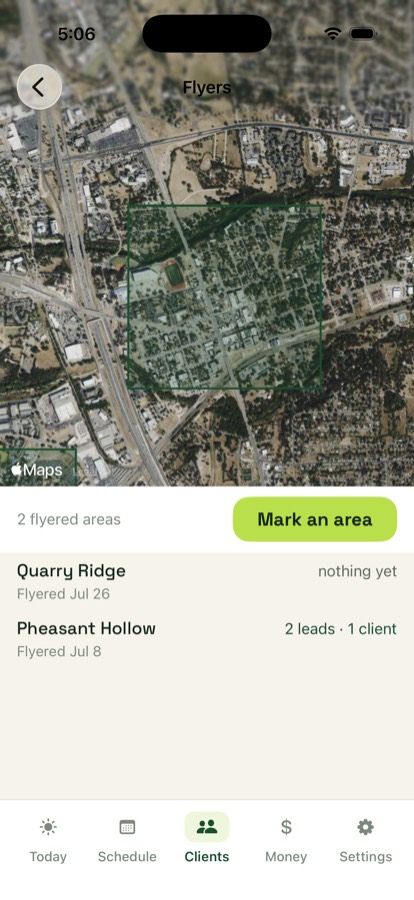
Flyered a neighborhood on Saturday? Open Flyer map, tap Mark an area, trace the block you covered, and name it. It saves with today's date.

From then on, that area keeps its own score: any lead or client who turns up inside it after the day you flyered gets counted, and the list reads "2 leads · 1 client." Do that a few times and you stop guessing which streets are worth the walk.

Flyer map
One block paid for itself. The other is still too new to say.

10. Know your clients

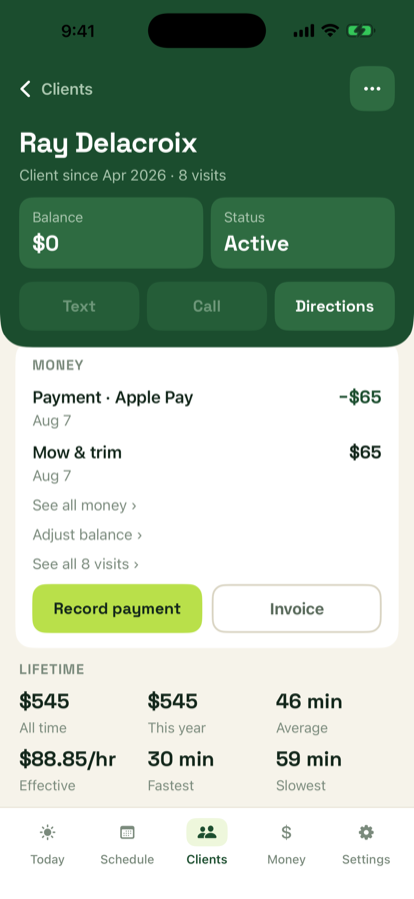
Tap any client to see the whole relationship on one screen: balance and status up top, Text and Call and Directions one tap away, their property with its schedule and gate code, recent money activity, and lifetime numbers at the bottom.

Client profile
The driveway questions, answered: do they owe me, and where am I going.

11. Winter and spring

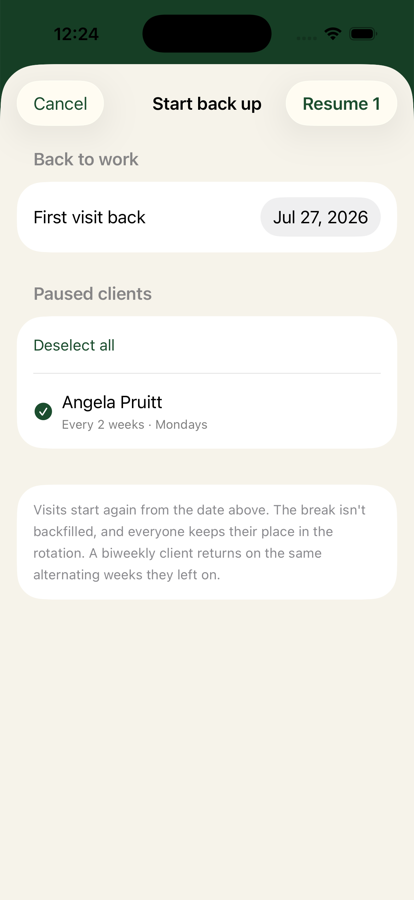
When the season ends, open the Schedule menu and choose Season pause. Pick the clients (everyone, by default) and their upcoming visits clear from the planner. History and balances stay put.

In spring, the same screen brings everyone back in one tap. The break isn't backfilled and every client keeps their place in the rotation, so a biweekly client returns on the same alternating weeks they left on.

Season pause
One tap down for winter, one tap back for spring.

12. Fertilizing, weed control, and aeration

Treatment work does not run on a weekly rotation. A program is a list of rounds, and a round comes due a set number of weeks after the last one went down, inside the season you choose. Nothing lands on the schedule until you send it, so a wet stretch never leaves you with a pile of visits to move.

Set up a program

Price by size

Settings → Price list holds your treatment rates: a price per 1,000 sq ft for each cost type you sell, like fertilizer or pre-emergent. Remove the ones you don't offer. Link a round to a rate, enter the yard's square footage, and Price all rounds by size prices every round from its own rate. If you measured the lawn when you quoted it, the square footage is already filled in.

Send the work out

When rounds come due, the Schedule tab shows Treatments due. Open it to see which yards are ready and how late any of them are, pick a day, and schedule them together. The forecast for the day you pick is right there. With crew, you can send the whole batch to one team, which is what you want when a different truck sprays.

Treatment stops carry a droplet and a clay tint everywhere they appear: Today, the week, and your crew's route on the web. Finishing one moves that yard to its next round. Skipping leaves it due, so it comes back in the next batch.

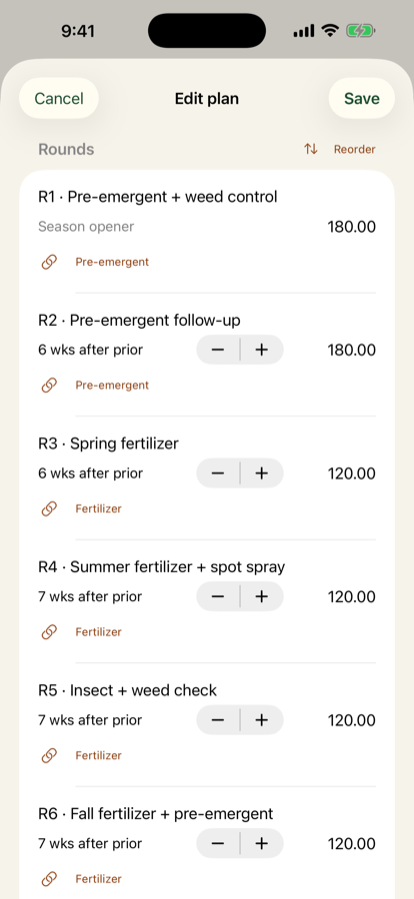
The program editor
A program being edited: each round with its own name, the weeks after the one before it, its price, and the rate it is priced from.
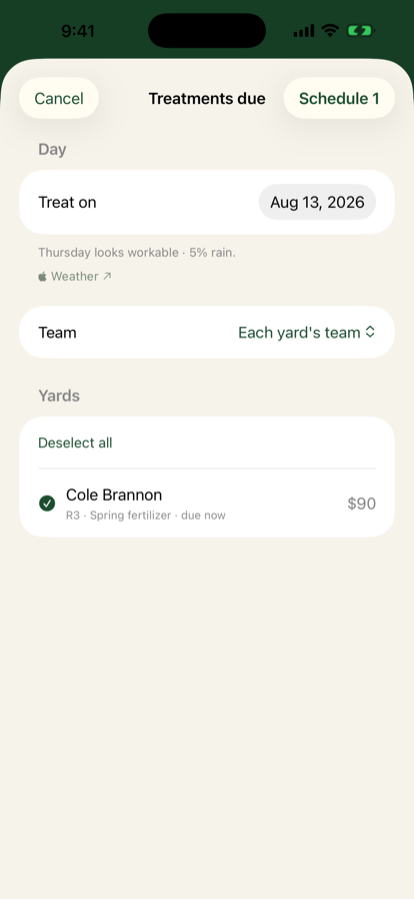
The treatments due sheet
The batch before it goes out: the day, the forecast for it, which truck sprays, and every yard that is due.

13. Your crew

When it stops being just you, Settings → Crew gives each worker their own sign-in on a simple website — nothing for them to install, and it works on any phone, Android included. Crew is a monthly subscription; solo Hedgemony stays free forever.

Set up crew and add your first member

Permissions

Open any crew member's name to choose what they can see and do: job prices, client phone numbers, gate notes, the full week ahead, other crews' routes, and whether they can log expenses. What you don't allow never even reaches their phone. The same screen resets a PIN or turns their sign-in off — both take effect within a minute.

Teams: running more than one route at once

One crew, one truck? Skip this — your whole book is Team 1 and everything works as it always has. The day you're fielding two routes at the same time:

Who rides, by day

Seating lives on the Schedule tab, beside the week it plans. Tap the team button above the week and choose Who rides. You get a row for You and every crew member, with the days of the week. Tap the days each person rides with that team. That's the whole system, and it's what fills each crew member's day sheet automatically.

The roster, PINs and permissions stay in Settings, because those change once and then sit still. Seating changes with the week, so it belongs with the week. Which team a yard is on is set on the yard itself.

Running the day

The Today tab gets a team switcher next to the date, so you see your own route while your crew works theirs. Their day flows back to you as it happens: yards marked done or skipped land on your schedule (autopay included), the job timer's minutes count toward that client's true hourly rate, and expenses they log — with receipt photos — drop straight into your books, marked with who logged them. The crew site speaks English and Spanish; they flip it themselves with one tap.

And if you ever want out entirely, Delete crew account erases everything crew-related from the server, permanently. Your clients, schedule, and money on your phone are untouched.

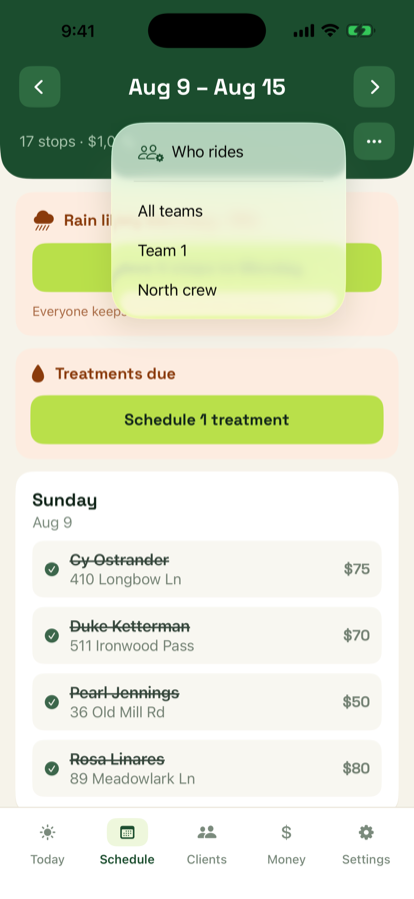
The team button on the Schedule tab
The team button above the week: Who rides sits above the filter, because it is the action and the rest is a view.
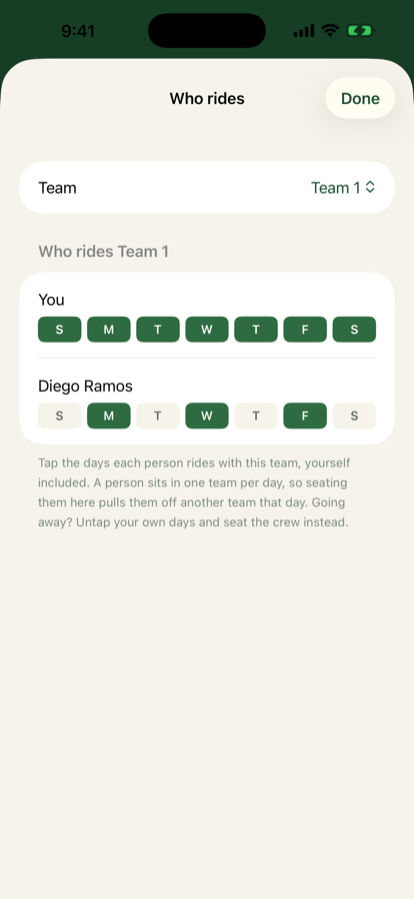
The seating chart
The chart itself: you every day, Diego on Monday, Wednesday and Friday.
Crew settings
The crew section in Settings: code, roster, teams — and the subscription that turns it on.

14. Your business, your data

Settings → Business profile holds your name, phone, logo, sales tax rate if you charge it, and the how-to-pay details for invoices.

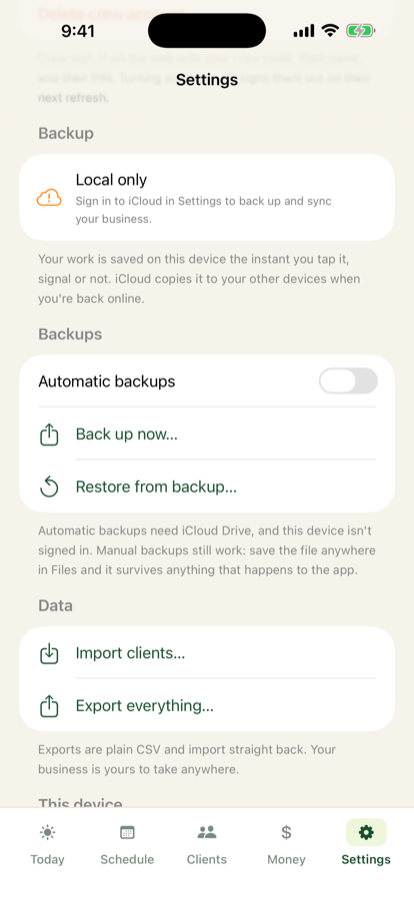
Your data lives on your phone, and your book works fully offline — crew and card payments are the online parts, and they catch up when signal returns. Sign into iCloud and your work also syncs to your own private iCloud, so a second device sees the same business. Settings says plainly whether that's on.

Backups

Deleting the app takes the database on the phone with it, so Settings has a Backups section of its own.

Export everything is the other door out: one tap builds fresh CSVs of your clients, visits, money, and expenses that any spreadsheet can open. The client file imports straight back into a fresh install. No accounts, no ads, no tracking.

If you turn on card payments, that part talks to Stripe and to a small service of ours that connects your app to Stripe. It holds payment amounts and dates, never card numbers and never the rest of your business. The privacy policy spells out exactly what goes where.

Business profile
Set once: identity, logo, tax, and how clients pay you.

Questions or problems

Email hedgemony@loboz.com with what you were doing and what you expected. During testing, blunt reports are the most useful thing you can send.